Category: tips

  • Thinking about going to law or business school? Here are some pointers.

    Are you thinking about going to law school or business school?  Or perhaps—like crazy yours truly—both at the same time?  This blog entry covers the following:

    – Is law school right for me?
    – Is business school right for me?
    – How do I narrow down which school to apply to or attend?
    – Okay, I picked a school and got in!  Now how do I prepare?!

    *  *  *

    Is law school right for me?

    Maybe.  Dont believe the hype in either direction ;-). 

    Signs that point to yes:

    • You like sifting through fine details
    • You are sure you EITHER want to practice law in some way *OR* are a real go-getter trailblazer who is secure forging a non-traditional path.
    • You like learning (I mean genuinely enjoy stuffing new facts into your head regularly, thinking hard about challenging issues).
    • You are comfortable mentally grasping and juggling ambiguities but ultimately comfortable making a hard and fast decision.

    Signs that point to no:

    • You’re very unassertive.
    • You don’t like dressing up.  While you CAN get a law degree and go into a career that doesn’t require you to dress “professionally,” the odds are against you.
    • You are dead-set on making the world a better place.  I add this with some reserve, but in my heart I believe that people who go into law with 100% altruistic motives tend to get jaded and burned out.  Want to really change the world?  Start your own company, join the Peace Corp, do volunteer work every weekend.  While you CAN do this stuff with a law degree, it just doesn’t seem like the most time or cost efficient method, IMHO.

    Is business school (an MBA program) right for me?

    Again, maybe :-D. 

    Signs that point to yes:

    • You love your company and they’ve offered to pay for your MBA to help you advance up the ranks.
    • You’re fascinated by the nitty-gritty underlying details of business… operational issues, financial underpinnings, etc.
    • You have a strong scholastic or employment track record but are looking to move in a different direction (e.g., from Finance to Marketing) and want to leverage new knowledge, new contacts, and a new line on your resume.
    • You’re looking to start a company, have a comfortable buffer of time and money, and can afford a two year thoughtful search for a winning partner or partners.
    • You really like people.  You like learning from them, working with them, challenging them and being challenged by them.

    Signs that point to no:

    • You hate, absolutely loathe buzzwords. 
    • You deplored college, studying, books, etc.
    • You’re not a people person.  The idea of “networking” not only scares but disgusts you.
    • Your company isn’t going to pay for your MBA and you don’t have reliable indications that an MBA will dramatically increase either your pay or your job satisfaction.  Remember the opportunity costs here: not only two years of often-high tuition (+books, etc.), but also two years of lost pay, two years behind in moving up a corporate ladder, etc.
    • You lack the grades / background / ambition to attend a top-tier (at least top-third) business school.  I might sound really snotty here, but IMHO, if you’re betting that the mere presence of “MBA from UnheardOf School U” on your resume is going to impress HR people, you’re sadly mistaken.

    *  *  *

    Okay, you’ve decided you want to go to business school or law school.

    How do I decide which schools to apply to, which school to attend?

    • Classes and clubs:  Look at the list of classes offered.  Ignore the every-school-offers-these classes like Torts and Contracts or Marketing and Accounting and such.  Are the “extra” classes in areas that fascinate you and are relevant to your career aspirations?  In other words, if you’re wanting to go into Entertainment Law—aside from quite possibly focusing on schools around major entertainment markets—you’ll want to be sure that a lot of relevant classes are offered in this context… e.g., Entertainment Law (duh), Intellectual Property, Negotiating, etc.  If you’re interested in starting your own company, you’ll want to see lots of entrepreneurship-related classes on the list!  Similarly, find out what academies and clubs are not only present but active on campus (e.g., Environmental Law Society, Marketing Professionals in Asia…).
    • External ratings:  Thumb through a book of ratings.  Sure, you can’t believe everything you read, but if one of the schools you’re considering has topped the list on the “Most Unpleasant Law School to Attend” or “Most Cutthroat Colleagues” for three years running, there’s a substantive takeaway there, eh?  Additionally, as unfair as it is sometimes (especially with schools resting on their laurels), reputation does count for a lot.  Graduating with a B average at Wharton vs. an A average at a no-name school, well, you can guess what will turn more HR-folks’ heads.
    • Location:  Unless you plan on getting into a top top top school (Wharton, Harvard Law…), know that your best chances for internships and employment right out of school will be in the geographic area of your school.  In other words, don’t go to a Chicago law or business school if you’re not interested in working in the Chicago / Indianapolis area.
    • Gut: VISIT!!!  When you’ve narrowed it down to 2-4 schools, fly out there and visit.  I know, I know, it may be expensive, it may be hard to take time off work, but even a $2,000 investment in this area will pay off in the long-run in terms of not only you making the best choice… but in knowing you made the best choice.

    *  *  *

    You’ve finally decided on THE school for you.  Great!  Now you’re wondering…

    How do I prepare for my first day of classes?

    Well, first I’ll tell you what *NOT* to do.  Don’t stress.  Don’t go out and buy textbooks and try to pre-learn material.  Don’t try to become an expert in trademark law or e-marketing or finance before you show up to school.  Instead, here are a few things you may indeed want to do before you arrive at your new school:

    • Get organized:  Find a system that works for you to help you manage your notetaking, appointments, and to-do list… whether it’s all computer programs, just paper notepads and books, or a combination of the two.  Get into a groove.  Know your system backwards and forwards before you step foot onto campus so you don’t waste time learning tools, figuring out processes; you need to be productive and organized the day you arrive.  Read my more extensive previous entry about organizing your life.
    • Practice being a people person:  If you’re really shy or not yet adept at networking, practice this before you get on campus.  Whether it’s toastmaster nights or exhibit hall’ing or social dances… practice introducing yourself, effectively chit-chatting, and LISTENING.  These skills—both in grad school and beyond—will perhaps be your greatest asset combo… more important than rote knowledge or usually even your grades in school!
    • Be prepared with the right physical stuff:  These include not only a stellar laptop (know it forwards and backwards, with software, BEFORE you arrive on campus!) but also a comfortable knock-‘em-dead interviewing outfit or two, lots of even-more-comfy and not-too-stuffy business casual wear, a snazzy (not too wild) haircut, and so on.  Hey, if you have a few months before you arrive on campus, why not also try for a new-more-fit-you; a deadline when you’re about to meet new colleagues, make new friends, and interview for summer internships is likely a fine motivator to *NOT DIET*, but rather change your lifestyle to be healthier and thinner.

    *  *  *

    And finally… you’ve made it to campus, you’ve started your first week and you’re pondering:

    How do I stay in tip-top shape and excel without losing my mind?

    • Eat right:  Fast, unnatural food is your enemy.  It will make you think sluggishly, get tired more quickly, and possibly make you look like a fat slob.  Not to mention hamper your sex life. 
    • Sleep well:  You know your body.  If you need 8 hours, get 8 hours.  And if you think you “do just fine” on 5 hours, you’re probably kidding yourself.  I know it’s insanely hard, but try to also keep to a somewhat-regular schedule.  Get up around the same time, even on weekends, even if it means taking a short nap.
    • Exercise:  Get some.  Doesn’t matter if it’s walking, biking, kickboxing, canoeing, etc., as long as it includes both aerobic and a strength-building components.  You WILL think better and sleep better and look better when you’re getting regular exercise.  Add workout times to your calendar (even your public one) so this part of your life doesn’t get squeezed out.  Teaming up with a workout-buddy (of either gender) can be very motivating, too, because it’s much more shameful to cancel when you know someone else is counting on you to be there ;-).
    • Destress:  Whether it’s yoga, meditation, praying, or simply sitting under an apple tree for an hour a week, do it.  You need to clear your head of derivatives, legal arguments, and grade point averages.
    • Socialize smartly and regularly:  Even if you’re not a drinker, try to make at least some of the weekly bar nights.  99% of the people will still respect you when you drink apple juice, but you’ll lose the networking, the friending opportunities, and more if you simply fail to show up.  Conversely, if you ARE a drinker, drink less than everyone else.  Going to an Laws of Corporate Taxation class (or trying to study ancient Torts minutae) with a hangover is a fate I’d not wish on anyone.  Drinking issues aside, make sure you allot at least some time every week to hang out with people outside of class, whether that’s the bar, a Christian Outreach club, an intramural rugby team or whatever.  You NEED that time away from your books, and—more importantly—you emotionally need connections that don’t have to do with an 801b wireless LAN or a finance studying group.
    • Don’t dwell unhealthily on the past or the distant:  Don’t harbor regrets.  And don’t spend all your free time calling home (to Mom, to boyfriend, to best friend in Boise, etc.).  Time spent on past and distant connections is time and emotional energy you can’t apply to the present and the local.  This doesn’t mean you should fail to learn from the past or break all ties with your girlfriend or best friend back home; rather, I urge you to balance your life and set appropriate expectations amongst the people you care about.
    • Avoid being an ass, and don’t burn bridges!:  You may hate your Contracts prof.  You may have hilarious and scathing stories to tell about your ex you shacked up with during your MBA section last quarter.  But zip your lips and stay mostly positive.  You don’t know when you’ll need the respect of that Contracts prof to link you up with your most-desired law firm, and you don’t know when you’ll depend upon your ex for a connection to that internship in Prague.  Beyond just future needs, I’ll just note this:  People may laugh at or even with the guy with the perpetually vocal, scathing, bitter wit… but they likely won’t want to work with him, hire him, or even help him.  Yes, this relates to gossip, too.  When in doubt, don’t say it, don’t even e-mail it, and definitely don’t post it on the Web.
    • Take notes, take notes, take notes.  Process them NIGHTLY:  The very act of note taking can help keep you awake during a boring lecture.  But more importantly, writing stuff down (or typing) will help stuff stick in your head more.  Even if things don’t make sense right then (I remember not even being able to spell a lot of the phrases thrown at me during lectures, much less understand some of the complex legal theories), trust me when I reassure you that you’ll have a better chance of understanding stuff later if you take notes from the get go.  And hey, don’t make the same mistake I did by writing notes and then processing/organizing them 2 days before your midterm; that’s the stupid, stressful way of preparing.  Instead, force yourself to organize/outline/clean-up the notes the same night you wrote them, or at the latest the next day (the upcoming weekend is too late, and will you really get to your notes then anyway?).  As suggested in my aforementioned previous article on organizing your life, especially take note on the people you meet:  name, what they looked like, where they’re from, what they’re studying, how you can help them, how they can help you, etc.  This database will be golden for you, honest!

    *  *  *

    Whew!  Okay, that’s enough for now, I think.  I hope this list is helpful, and—as always—please feel free to post suggested changes or additions in the comment box below!
  • The *Filled to All Available* Syndrome

    Over some coffee this afternoon, I contemplated what I have now coined the “Filled to All Available” or “FTAA” syndrome.  Here’s what it means, basically.  As humans, we tend towards and often feel more comfortable within defined boundaries.  Ambiguities and uncertain limits force us to think, to apply sometimes-risky judgement calls, and in our rushed and often bureaucratic society, that can be stressful.  So, we thrive in a FTAA environment; we fill up our desks, our closets, our schedules to capacity.  If we get larger desks, bigger closets, or unexpected free time, somehow we find a way to fill or fritter away the excess space.  At an all-you-can-eat buffet, we tend to think of “getting our money’s worth” and—you guessed it—filling up rather than lightly sampling.  We eat until we are not just satisfied, but stuffed.  We store junk until our apartments are bursting at the seams.  We live a life that is “Filled to All Available.”

    What does this actually mean?  Well, for starters, it suggests that making more money, getting a bigger house, and buying bigger boxes of chocolates at Costco will not necessarily make us happier, healthier, or more productive.  On the flip side, it suggests that there are key advantages to thinking and doing Less in order to simplify and de-clutter our lives.

    One way to go about doing this is to increase the proportion of shared or borrowed resources in our life and decrease the amount of things “owned.”  This can be electronic (renting music, a la Yahoo Music Unlimited instead of “owning” [sic] music via iTunes), small-scale physical (borrowing books instead of buying them), and large-scale physical (car-sharing instead of owning a car).

    Beyond this, there are mental changes that can be made as well… primarily pushing oneself away from a college-era mentality of hoarding and scarcity.  Dividing up a large chocolate bar into smaller pieces and storing or giving away the majority.  Visiting only two cities (for longer) instead of five, despite having an unlimited Eurail pass.  Resisting the temptation to check Deals Web sites five times a day to buy stuff we don’t need with rebates we’ll forget to file.

    *  *  *

    The lesson at the end of the day:  Think not what you have the resources to get or do.  Think instead of what you need.  Then think again.  Avoid the “Filled to All Available” syndrome by decluttering your life, minimizing excess, and regaining focus.

    Easier said than done, but very, very worthwhile.

    *  *  *

    What are ways in which you’ve found your life “Filled to All Available”?  What have you done to combat this?

  • Helpful numbers to save in your phone!

    I invite you to go grab your cell phone / mobile phone / home phone whatever and program the following numbers into it:

    – 1-800-555-8355 (“555 TELL” — TellMe)
    – 1-800-373-3411 (“FREE 411” — Free411)
    – 1-888-392-7563 (“EZ ASK ME” — AskMeNow – Initial signup on site required)
    – 46645 (“GOOGL” – Google SMS beta – Google via Text Messaging)

    NOTE: One or more of these numbers may be U.S.-only… sorry 😐

    For details on each service, read on…

    TELLME
    I’ve been using this service for ages, and it’s really gotten me out of some tight jams!

    Via interactive voice menus, callers can easily get weather reports, serious and entertainment news, movie info, and much more. But the butt-saving features I’ve particularly appreciated are TAXI and DRIVING DIRECTIONS. The former will connect you (free of charge) with a local cab company, and the latter gives you step-by-step spoken driving directions between any two points in the U.S. (powered by “Microsoft MapPoint Technologies”)

    Supposedly, TellMe is ad-supported, but I have yet to hear any ads on the service.

    * * *

    FREE 411
    Tired of paying $1.25 and up to your greedy mobile or landline phone company for directory assistance? Then you’ll especially love Free 411! Not only does it find residential and business phone numbers for you, it also connects you free-of-charge (even to long distance numbers!) This service is apparently ad-supported (e.g., ask for Dominos Pizza, get a 15 second ad for a competing pizza place), but I’ve never heard any ads during the 3-4 times I’ve used this service.

    Voice recognition is pretty decent, but the one time I stumped it, I was transferred to a human operator who was able to promptly get me the number I requested.

    Frankly, though, I do wonder how sustainable this is. Will enough companies really pay to have folks redirected to them? If people are asking for Smith Window Washing services, will they really be so easily swayed towards a competitor? I have my doubts. But in the meantime, I’m happy to use this very convenient free 411 service!

    * * *

    ASK ME NOW

    Need to know the capital of Wisconsin? Or find the phone number of a particular Citibank branch? Sure, if you’re near an Internet-connected computer, you could probably quickly and easily find this info yourself. But what if you’re busy or not near a computer? Yes, I have a Web browser on my Treo phone, but it’s slow, the screen is small, and it’s generally just a miserable experience trying to navigate Web sites with it.

    Well, Ask Me Now is indeed a viable alternative. You call their number, leave a message, and 1-3 minutes later, you get back text messages with the right answer. Or at least AN answer. In my minimal testing, Ask Me Now gave me the right answer to “What is the Capital of Wisconsin?” but gave me the wrong answer to “What is the phone number of the Citibank branch located on Diamond Street in San Francisco?” The person (apparently located in the Philippines) who answered my query clearly just quickly googled for the answer and didn’t bother checking on Citibank’s Web site, since the correct answer is available in the latter, not the former.

    This service costs 49 cents per query, billed to your cell phone account. Supposedly you can get free ‘automated’ answers, but it’s not clear to me what qualifies as free and not-free, even after looking on the company’s Web site.

    * * *

    GOOGLE SMS
    Another option is Google’s SMS service. Text message GOOGL (46645) to get driving directions, movie showtimes, weather reports, price comparisons, and more.

    I’ve found this service to be both wonderous and frustrating. For instance, when I asked it [What is the capitol [sic] of wisconsin?] it replied back “Did you mean CAPITAL…” and gave me an appropriate Web page… when I would have preferred for it to actually include the answer, not just a link, in the reply. Additionally, when I asked it [Phone number for Citibank on Diamond St in San Francisco CA] it replied unhelpfully: “Looking for map of [query]? Unfortunately map information is not available through Google SMS.”

    I had better luck with other queries, such as [weather 91360] and [what is the population of belgium].

    * * *

    YAHOO SMS
    Despite multiple attempts, I could not get this service to work. I kept getting an “Invalid…” message, with instructions relating to Y! Messenger, after even using the exact queries listed on this page. Bummer. Any Yahoo people out there wanna help me figure out what’s going on here? I’ve heard good things about Yahoo’s mobile offerings and perhaps there’s just something small / obvious I’m missing?

  • Here’s a great stats service to track hits to your site

    After hearing good things about StatCounter from friends who’ve used it, I decided to give it a try. I liked it so much after one day, that I decided to shell out $9/month to see stats on many of my sites.

    What’s to like:

    • A decent, no-nag free option!
    • Easy to set up… stats visible 2 minutes after I signed up, and literally 2 seconds after I put the javascript on my first site and visited a page.
    • Admirable support. When companies have an active and supported forum, that’s a huge plus in my book… it says “This company honestly cares about its users and their concerns.”
    • Ability to have tracking invisible even on the free version!
    • Lots of useful stats. I was particularly impressed that I can see the full path of any user who visits one of my sites.

    What would make this even better:

    • Alerts! I’d love to get an e-mail, or — better yet — an SMS or IM when someone from [domain] visits my site, when someone visits
      a specific page, when there’s a huge traffic spike, when I don’t get a hit within 10 minutes (site may be down), etc.
    • More trending reports. Which pages have surged in popularity? Am I getting a lot more folks from Canada than two months ago? Has the average visit length increased a lot since earlier this year?

    Anyway, I encourage you to try out this useful service. Let me know what think!

  • Google Desktop review — check out the cool new beta version!

    Introduction

    What is Google Desktop (“GD”)?
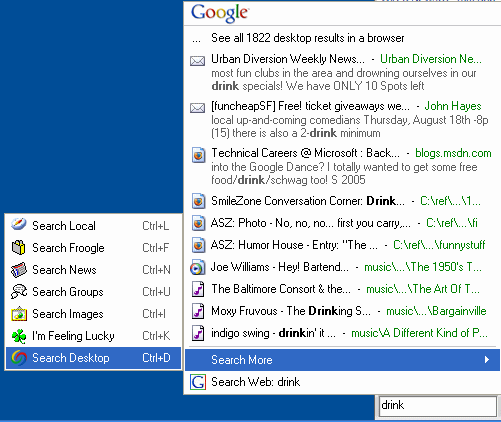
    Google Desktop (formerly known as Google Desktop Search or “GDS”) is free program from Google that enables you to search for data on your computer much like you use Google to search the Web. You can look for and open e-mails, photos, music files, PDFs, and lots of other good stuff. No ads are shown. Below you can see a screenshot of me searching for “drink.”

    google desktop search hyper results

    How to get GD

    Go to http://desktop.google.com/ and follow the very simple instructions. Note that you have a choice of the latest version (2.0 beta — a version still in testing, described in the rest of this post, or 1.0 final).

    A brief background on my love / not-so-love relationship with GD
    I had just about given up on GD. Initially impressed and pleased with the product, I was losing love for GD as I became more seduced by the find-as-you-type capability from competitors such as X1 and MSN Desktop Search. Sometime straying, I would somewhat grudgingly come back to GD, appreciative of the handy contextual Web snippets but wishing there was a product that combined the richness of this with find-as-you-type speediness.

    Just in time… Google Desktop Search v2 (GD2) is that charming fleet-footed if still a bit gawky new friend.

    For those too lazy or impatient to read through my entire review, I’ll summarize with this…
    Google Desktop offers a delightful mix of usefulness and fun. For those who have humungous amounts of data and need to finely drill down by multiple fields, X1 and Copernic may remain more favorable options. But for the vast majority of geeks and non-geeks alike, GD’s speed, light footprint, and currently-entertaining-if-not-yet-essential non-search extras will likely be enough to earn a place on their desktop.

    Key improvements

    GD2 is a significant step above GDS. Here’s a sampling of what’s new and improved:

    • Find-as-you-type (search results quickly pop up as you type each letter, narrowing the search with each additional letter)
    • Search Gmail and network drives.
    • Search Outlook items like tasks, notes, appointments. Search directly from the Outlook interface, too.
    • A nifty sidebar (discussed in detail below) with an open API!
    • Items moved (even from an IMAP to non-IMAP folder) are now handled more effectively by GD.

    Installation and pre-installation

    Installation of GD is easy and pretty painless. On my reasonably beefy P4, the download took a few seconds and the entire install process took under 3 minutes. This, of course, doesn’t include indexing time, which (though I didn’t time it) seemed only a few hours for my drive with 100+ megs of stuff AND my Gmail account.

    Google’s GD privacy policy, thankfully written in English rather than legalese, is similarly straightforward. Highlights:

    • The contents of your computer aren’t shared with Google or other folks without your explicit permission.
    • A limited amount of non-personal info is sent to Google to help in troubleshooting, software development, and content personalization. You can opt out of this if you want.
    • You have control over what GD indexes.
    • You can uninstall GD if you like (duh!).

    Google walks you through some basic configuration options and then, voila, you’re done. Well, almost done. You have to go read a book, ride a bike, or do something away from your computer (ack!) for a while if you want Google to actually index your stuff. And hey, make sure your (supported) e-mail program is open in the meantime, or GD won’t be able to index your mail.

    The nifty GD Sidebar

    The sidebar consists of the following components, any of which may be either not shown or minimized. Items in green are ones I personally find particularly cool.

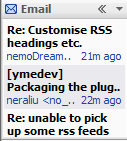
    • Email
      This only supports Gmail for now. It shows a bit of each recent email’s title, AUTHOR, and time of receipt ([x] minutes ago).
    • News
      This shows a number (your choice) of headlines from Google News… article title, source, and time of posting ([x] minutes ago). This is very frequently updated and you can actually see new items gradually push down older items in a nice gradual sliding effect (which I suppose some could find distracting).
    • Web Clips
      This presents “feeds” to you either from sites you’ve frequently visited and/or from sites you specify. For instance, after I visited Wired.com, this sidebar component started including headlines from Wired. When I visited a friend’s blog, it started including headlines from her blog. You get the idea.
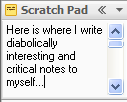
    • Scratch Pad
      Pretty much like what it sounds like. Write plain-text notes here and they’ll stay here :-).
    • Photos
      GD crawls through your photo collection (which you can bound by specific limits) and displays a mini-slideshow here… a new photo fades in every 15 seconds by default. Clicking on the photo takes you to a list of recently shown photos. Clicking on one of those photos brings up the full-sized version. In addition to grabbing photos from your hard drive, this panel item also optionally shows photos from sites you visit.
    • What’s Hot
      I’m not exactly sure how this works, but it seems like some sort of Zeitgeist / Blogpulse type of thing highlighting the Web pages that have recently been popular. I find the stuff on www.spurl.net to be more comprehensive and entertaining.
    • Quick View
      This panel item lists items or pages you’ve recently accessed or viewed. Sounds great in theory, but I’ve found it pretty useless in practice, since it tends to show files that my computer accesses frequently (preference files, etc.), or files that I regularly — but indirectly — access on the ‘net.
    • Stocks
      Add stocks or stock indices, see the numbers. Pretty basic.
    • Weather
      Add a city, see the highs, lows, and so on. Pulls from the same weather data you see if you type weather [zipcode] into Google… that is to say, not terribly accurate data, IMHO.

    Information from each sidebar can also be viewed in a larger panel; for instance, you can click on the << mark on the title bar of News, and you'll get a larger (attached) window showing news items. Click on one of those news items and you'll see a snippet. Click on the title in the snippet, and you'll be brought to the original Web page. Whew! Sounds complicated, but it's all rather intuitive. You can also easily drag-and-drop resize, and minimize sidebar components. Most importantly, I see this sidebar as just a glimpse of stuff to come. I have no doubt that people will create and share their own useful or fun sidebar items via GD plugins pretty quickly, especially given that the sidebar — as GD on the whole — has an API that independent developers can write for.

    Google Desktop Search stocks sidebar Google Desktop Search email sidebar Google Desktop Search photos sidebar Google Desktop Search scratch pad sidebar
    Google Desktop Search quick view sidebar Google Desktop Search news sidebar Google Desktop Search web clips sidebar Google Desktop Search weather sidebar

    Google Desktop Search news sidebar expanded

    Configurability and options
    GD is reasonably configurable. You can set, among other things…

    • What types of data you want indexed (email, chats, Web history, etc.)
    • Your Gmail signin info (so GD can search your Gmail)
    • Additional hard drives and network drives to search
    • Web sites and hard drive directories to exclude from searching
    • Encrypt or not-encrypt for the GD database (default is unencrypted… better speed!)
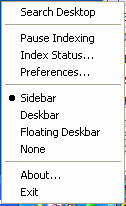
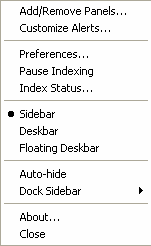
    • How you want the search box displayed (as part of the sidebar, as described above, or as a small box in your taskbar or a small floating box you can place anywhere on your desktop)

    Pictured below are the main options box (via the systray icon) and the sidebar preferences box respectively:

    google desktop search optionsgoogle desktop search preferences

    Strengths, weaknesses, and AdamWishes
    GD has some stark strengths and weaknesses when compared to some rather admirable competitors.

    STRENGTHS

    • Small footprint.
      Unlike other desktop search programs I’ve tried, GD never slows down my system… either in indexing or when conducting a search. 
    • Plugin architecture:
      Like the MSN Search Toolbar with Windows Desktop Search (whew! just MSNDS henceforth!), GD provides a framework where developers can create neat plugins that extend the functionality of and even improve the interface of the software.
    • Ability to search desktop and Webmail (well, at least Gmail) simultaneously:
      For those who maintain mail accounts both locally (e.g., on Outlook) and on Gmail, GD is the only offering that can search both simultaneously.
    • Enjoyable extras:
      Do we really need a mini photo slideshow along with tickers for news, weather, and other stuff? Not really. But, if even a mere guilty pleasure, it’s a treat having them all optionally stacked together in a well-behaved docked sidebar with GD. And the scratch pad is more useful than I initially suspected it would be. So, too, does the frequently-updating news component provide a greater amount of engaging information than I initially expected. Oh, and one particularly fun use I’ve found for the Hyper find-as-you-type feature: entering in the name of a song on the spur-of-the-moment, hitting [enter] and then (as it’s quickly loaded into my music player), hearing the song played. Much faster than loading up music software (winamp, wmp, whatever) and searching for the song there. 
    • Fast and comprehensive indexing:I’ve found GD to be among the fastest of the bunch to include files and e-mails, and — particularly with various plugins — it boasts a pretty comprehensive list of supported filetypes (though if memory serves me right, X1 may still take the prize in the comprehensiveness if not the speed area). 
    • Web historyThis is a biggie for me! I haven’t seen any other desktop search program that lets me not only pull up Web pages I’ve visited (via a full-text search!), but even keeps cached copies. Super-useful in research (what was that page I saw last week or the week before about new advances in speech recognition?…)

    WEAKNESSES

    • Search results narrowing by field:
      Here is where competitors like X1 and Copernic shine. Type a few letters of a mail recipient and then refine it with a few letters from the subject line. Boom! Or drill down by one of at least a dozen other useful fields as an extension of a general search. This, perhaps more than anything else, is the feature I still miss in GD.
    • Full-pane previews:
      While I appreciate GD’s snippets in the Web browser view, I sometimes yearn for the full-pane preview I grew accustomed to with competing products. 
    • Limited hits in find-as-you-type:
      While GD’s inclusion of “hyper” (the technology (?) that lets you display up to ten hits as you enter letter by letter of a search query) is quite valuable, it’s frustrating that it’s limited to a mere ten hits. Contrast this with the competitors seemingly almost-limitless view of as-you-type results. 
    • Lack of synchronization of panel extras:When you type a useful note in your scratchpad at home, you may find yourself surprised and miffed that it doesn’t show up on your GD panel on your work computer. Indeed, as far as I can tell, there’s no sharing of configurations or scratchpad data at all. You’ll need to set up your preferred stocks, weather, and other data bits on each installation, and that’s rather annoying. So, too, I’d assume, are “remove this” requests not synchronized from one installation to another, resulting in you dismissing those annoying whatsit Webclips on multiple computers. Since GD provides the option to log in to one’s Gmail account, it’s a pity that they didn’t (yet) go one step further and have initial and ongoing personalization efforts attached to one’s account and affect all of one’s GD installations.

    ADAMWISHES

    • More keyboardability!
      Once in the Hyper search box, I’d like to be able to to select numbers 0-9 to quickly select a search option, or letters A-whatever to select another option (search more, etc.). Heck, while we’re at it, why can’t I access items within a panel component (e.g., News) with a keyboard shortcut, too? 🙂 Incidentally, I’ve suggested the former UI idea to the Gmail team as well; on the pull-down options, why should I have to use my mouse? Why can’t they let me type the first letter of an option, e.g., R) Mark as read, S) Add Star and so on? But I digress. 
    • Filetype and field shortcut listing, please
      I know I can specify from: and to: and I think there’s type, but what other magic things can I modify use to narrow my searches with? Ah, okay, I just noticed some details here, but surely there must be more? Or there should be, I’d hope, for us powergeeks :-). 
    • More Outlook friendliness
      When I type Fred Smith in Hyper, one of the ten item listings should be his contact entry if one exists. And I’m still trying to figure out how I can look up a contact specifically (contact: [name] doesn’t work). Also, while I like having a search option with Outlook, it’s currently rather hobbled since the field listings aren’t flexible; noting a set of e-mails are from me doesn’t do much good if I can’t scan quickly who they’re to.

    * * *

    Okay, enough of my blathering. Now it’s your turn!
    – Have you tried GD? If so, what did you think? If not, are you going to try it?
    – What other desktop search programs have you tried? If you’ve also used GD, how do you think it compares?
    – What would you most like to see added to or improved in GD?
    – Got any GD questions?

    Oh, and here are some other cool sites talking about this latest GD version:

    Review by Nathan at InsideGoogle
    Search Engine Journal review

    EDITS:

    • 8/22: Changed references to Google Desktop Search to the correct name of Google Desktop (“GD”)
  • Backup your stuff… NOW! (here’s how)

    A couple of weeks ago, some jerk stole the laptop one of my clients was loaning me. This royally sucked for several reasons:
    – This laptop allows me to be productive during my commute and when otherwise off-site.
    – I am in the midst of several projects, with data critical to each of them all on — you guessed it — the laptop.
    – And yeah, I had to shamefacedly explain to my boss and my colleagues how I managed to lose a company laptop in the restroom on our floor, and what I was doing with a laptop there in the first place (let me clarify this now: I was on my way out to a friend’s going away party, and was brushing my teeth).

    Anyway, I spent (unpaid) overtime redoing the research and planning I had notated on that computer… only to discover (both with a huge sigh of relief and head-smacking frustration) that *ALL* of my work had been backed up. I was smarter than I had remembered, since I had not only saved many files directly to the client’s server, but had set up OneNote to do regular backups to my desktop.

    I was both smart and lucky. And now, with the tips below, you can be smart and lucky, too.

    * * *

    My home computer is now once again delightfully protected due to two purchases I’ve made recently:

    – An external hard drive (a Maxtor OneTouch, but any external hard drive’ll do)

    – Some fabulous (and fabulously inexpensive software) I just discovered called SyncBackSE. $15 gets you a not-so-glossy/slick-looking but amazingly powerful and configurable program that — get this — will even back up open files like Outlook PST files! No more having to shut down Outlook before nightly backups.

    And despite all the neato geek options, I was able to set up two backup profiles in under two minutes, literally. Later on, I’ll play with some of the in-depth stuff, such as configurable compression options and file-compare details, but so far I’m just tickled at how easy and fast and, yeah, cheap this solution is!

    Yes, it’s only for Windows folks. Sorry Macsters. 😐 And hey, if any Mac people are reading this, please feel free to suggest great backup programs for the Mac. EVERYONE should be doing backups!

  • Useful weather forecasts without clutter

    1) http://www.weatherreports.com/ rocks. Simple, crap-ad free, and easy-to-grok at a glance.

    2) Also, try typing weather [your-zip-code] into Google — e.g., weather 94112. Nice, eh?

    My one complaint? I wish these two offerings would provide more info with one click (hourly forecasts, etc.).

    Oh, and here’s one by phone:

    3) From any U.S. phone (other than a payphone), dial 1-800-555-8355 (“TELL”) and say “Weather.” Then say a zip code or city name and you’ll get an detailed, often rather extended and informative forecast. TellMe offers lots of other great services, too, that you can glean from their main menu.

  • "Google Suggest" service — Now Google reads minds

    Try out the Google Suggest tool, a new Google feature currently in the Labs.


    I’ve long been amazed at the computational power and speed of Google, but this real time demonstration of the company’s muscle is simply astounding.

    How is this latest offering useful? From my perspective, it will come most in handy with searches in the following contexts:
    – Names
    – Narrowing down from general to specific topics
    – Webmaster on-the-fly search engine optimization efforts (finding / measuring most-searched phrases)

    I’m curious to hear from my readers on this one. What are other ways in which this new Google service will be particularly useful… or especially fun / entertaining?

    [Yes, I admit, I’m a bit embarrassed that I’m so often gushing about Google stuff… but this particularly offering is just too cool to ignore, IMHO :D]

    Edited to add:
    – 12/10/04 11:02am: Forgot to give credit to Waxy.org (specifically their links page) for the heads-up!

  • Google Desktop Search — A review via an EXCLUSIVE interview!

    I was able to score an exclusive interview with Adam Lasnik, supreme geek, Google connoisseur, and Google Desktop Search expert, and I’m very pleased to offer the full transcript below.

    Adam, thanks for coming today. To start, why don’t you give us a quick overview of what Google Desktop Search (“GDS”) does?

    It’s delightful to be here!

    Well, GDS enables any personal and business user to search their computer’s hard drive much as they would search Google… typing in a search term using Google’s general search syntax and getting a results page in under one second.

    Specifically, GDS searches both the filenames and contents of the following: Outlook and Outlook Express e-mail, AOL instant messages, Internet Explorer (Web page history), text files, and also files from Microsoft Word, Excel, and Powerpoint.

    Do note that GDS only works on Windows XP and 2000 at this time.

    So is this all pretty easy to use, or is it a tool just for geeks?

    Perhaps unsurprisingly, GDS is quite user-friendly from end-to-end. It installs very quickly (it’s 400K) and it politely uninstalls just as easily. And actually using the tool is a snap: When you click on the GDS icon in your system tray, a browser window opens; you simply type in a search query, and BOOM, Google lists results are shown, formatted very similarly to regular Google searches.

    Whoa… regular Google searches… does this mean other people can search my hard drive? Or can Google see what I’m searching for or what’s on my hard drive? I better start removing those porn…er, confidential business plan documents!

    No, no… unlike with Google Web Search, the index of your files remains on your computer. While you have the OPTION to let Google learn about your search stats (not terms!), Google doesn’t peek into your hard drive contents or examine what you’re personal searching for. So if you’re looking for a big ass barbeque to grill a fluffy bunny, you don’t have to worry about Google notifying the ASPCA (I
    hear rabbit meat is tasty, though… but I digress). In a nutshell, Google’s GDS privacy policy should make you feel better.

    Okay, so GDS is easy to use and it’s not going to get me in trouble. So far so good. How about a few more techie details?

    You got it! First, let me say that — while GDS isn’t a power tool yet — it performs well on machines of power users like myself.

    I have a decent rig (2.4 ghz Pentium with 512 megs of RAM), but it’s loaded down with other file indexing programs, numerous Outlook plugins, more than a dozen apps in the systray, two routers (one wireless, one phone adaptor), a firewall (XP SP2-based), a virus checker (AVG), and many general programs running concurrently (Trillian, Dreamweaver, Outlook, and so on… and GDS has worked flawlessly. No install problems, and no noticeable slowdown of the system during indexing. Furthermore, searching with GDS is LIGHTNING FAST… both on my rig, and on the machine of a less-geeky friend of mine who’s sadly cursed an older machine. The downside of that, understandably, is that GDS is pretty conservative. It initially indexes quite slowly in the background (you’ll need to leave this puppy on overnight to get a full index!), and overall the product doesn’t try to do too many things for too many people.

    Hmm… well, tell us a bit more about the limitations of GDS, then

    GDS provides ease-of-use at the expense of power-tool complexity. Whether in the interest of not overwhelming non-geeks or simply due to the fact that this is still a version 1 (0.9?) beta release, Google has chosen not to offer much functionality customization or ANY UI customization.

    In some cases, this is a mere minor annoyance. We can’t opt to have the system go into a turbo mode (using more processor cycles) to get everything indexed quickly.

    There’s no way that I can see to have the system wholly refresh the index without doing an uninstall and reinstall.

    Some holes are a bit more frustrating. GDS doesn’t monitor e-mails and files after it indexes them, which can result in an inability to pull up items, or a duplication of listings in search results. Additionally, while you can tell GDS not to index certain sites or folders, you can’t block it from indexing specific Outlook folders. Luckily, it does ignore (perceived) spam folders by default.

    From a UI perspective, GDS is generally streamlined and will please folks who are looking for an experience that matches what they’re used to with general Google search results. Power users, though, may be a bit disappointed.

    The key issue is that GDS doesn’t yet offer search results in a contextual way. For instance, when you’re searching for an image on your hard drive, you probably want to see image thumbnails. When you’re searching for a particular e-mail, you likely want an easy-to-scan list of mail-related headers. However, GDS treats all search results alike, except for a little icon next to each search listing. In a way, this is understandable. In order to offer more strongly contextual search results, GDS would have to do one of the following:

    1) Show only one type of results per screen, which would require extra navigational clicks.
    2) Divide up results by column (e.g., e-mail results on the left, image results on the right), which could be problematic when there are more than 2 file types returned or when someone’s browser window space is limited.
    3) Limit search queries to one file type at a time.

    As you can see, none of these options are particularly desireable. Furthermore, many folks might find it disconcerting to see a shifting UI with search results.

    Therefore, it’s not surprising that Google has decided to go with a more generic but consistent results UI at this point.

    So GDS is sounding like a useful and effective, if not revolutionary product. How does it compare to existing desktop search solutions?

    It’s easier to install, it behaves more nicely, and it returns results faster than any other desktop search program I’ve seen.

    And speaking of other solutions, here’s a list of other desktop search programs I know about, with an asterisk by those I’ve tried:

    X1*

    Seemingly one of the most popular desktop search tools, X1 distinguishes itself in several ways: it displays search results as you type each letter, it shows previews of documents, it offers special fields for different searches, and it supports a ton of different file formats. Downside? It’s pricey, it can be a resource hog. [See license giveaway; still some left as of 10/15/04 2:46pm PST]

    LookOut*

    Recently bought out by Microsoft, this program integrates into Outlook, but searches many different types of files. It’s more flexible and powerful than GDS, but it’s not as fast… and it’s not useful for those who don’t have Outlook.

    Enfish*

    Big, pricey, and highly customizeable, with an especially useful saved-searches feature and decent integration with ones Outlook data overall.

    Copernic
    dtSearch
    80/20
    Superior Search
    Wilbur

    Wow, that’s a lot of competition for Google. So what makes GDS so special and important, then?

    Several things:

    1) Speed, stability, and ease of use.
    2) The trusted and liked Google brand.
    3) Integration with Google Web searches (you can configure the program to show desktop search results when you do a general Web search)
    4) Potential later integration with existing popular Google tools (toolbar, Gmail, etc.)
    5) Perhaps somewhat controversial… but there’s also the possibility that Google could — at the user’s option — use desktop search fingerprinting to steer or filter that individual’s Web results.

    Okay, I can see why GDS may be particularly noteworthy for consumers, but what does it mean for Google?

    It will enable Google to take over the world, though not all at once.

    But seriously, folks… I think GDS suggests several significant ramifications for Google (and yes, its shareholders):

    1) This may increase the frequency and quantity of Google Web (or integrated Web + GDS) searches, thus augmenting ad revenues.

    2) As many others have noted, it’s a clear strike-ahead at Microsoft, who is building desktop search capabilities into their future operating system. Why does this matter from a revenue standpoint? GDS will help insure that more people remain loyal to Google (and its advertisers), instead of defecting towards the possibly-OS-default MSN search feature.

    3) Each foray into Windows tools allows Google to build up an aggregate competency in this area, strengthening not only each individual tool, but the broad set of desktop-based tools overall (Picasa, Deskbar, etc.).

    Well, I’m pretty sold on Google Desktop Search at this point, I must admit. But how do I know if it’s right for me?

    I’d suggest that you simply give the tool a try. But if you’re really gung-ho about this space and have some extra time, you may want to give the other desktop search program a look-see as well. It’s notable that all of them are either free or offer free trials, so you have little to lose. Just remember to fully un-install any desktop search programs you decide not to use to insure that their likely-sizable indexes aren’t continuing to clutter up your hard drive.

    And in the meantime, here’s my humble list of what to look for in a desktop search tool:

    1) Ease of install (and, indeed, uninstall!)
    2) Comprehensiveness of indexing (how many different file types does it support?)
    3) Speed of indexing (initial and ongoing)
    4) Load on computer (during initial indexing, ongoing indexing, searching)
    5) Speed of searching (how long does it take for it to deliver search results?)
    6) Power of searching (Boolean expression support? Ability to search particular fields?…)
    7) Usefulness of search results (relevance, completeness, formatting)
    8) Cost of program
    9) Support from company (FAQs, e-mail support. etc.)
    10) And I almost forgot the most important thing — does it work on your system (platform, necessary specs, etc.)

    Adam, thanks so much for all of this information and for taking the time to stop by here today

    Absolutely a pleasure. It’s always been my dream to appear on BLADAM, and I thank you for the opportunity to address your wonderful, smart, and attractive readers who will no doubt eagerly link to this page and share it with all their friends. But tell me one thing: Why has it been more than four months since you posted anything in this blog?

    Ahem… um… well, I was in the process of changing blog software, but never got around to actually finishing the transition, plus I started two new jobs recently and…

    Ah, no worries! Just glad to see BLADAM back up, even temporarily.

    :blushing: It’s nice to be back.

    Relevant and cool links:
    A Net Takeway examination of the desktop search space
    Excellent overview of GDS from SearchEngineWatch
    SearchEngineWatch – Privacy and Google Desktop Search
    John Battelle’s take on GDS

    Edits: (Times are Pacific Standard Time)
    – 10/14/04, 21:45: Actually linked to the product. What a revolutionary idea, eh? [smacks head]
    – 10/15/04, 14:46: Added x1 license giveaway link (not likely to be applicable for long!)

    [P.S. — Please feel free to leave a comment with any corrections, or suggest any additional aspects of GDS to cover. Thanks!]

  • Review of Sony’s new music service, Connect

    I’m a glutton for punishment. When new music services come out, I love to try them, including Roxio’s Napster, MusicMatch, iTunes, BuyMusic, Rhapsody, Coke’s music service, FullAudio’s MusicNow, RealOne, emusic, Weed, and many, many more.

    Trying Sony’s new music service, Connect (which runs on Sony’s SonicStage software) was probably one of the most punishing of all. Let me count the ways:

    – Huge, cumbersome download.
    – Long install process, and reboot required.
    – Downright UGLY and confusing interface.
    – Same “low prices” (ha!) as most of the other major players… 99 cents per track / $9.95 per album.

    But what sucks the most about Connect? YAFMF (“Yet Another $% Music Format”).

    That’s right. When you pay for and download a track (which I was masochistic enough to do), you’ll get a file with an “OMA” extension (not even fit my Grandma!) that’s apparently encoded in Sony’s charmingly proprietary ATRAC codec that no one else touches with a ten foot pole.

    Want to play the tracks you download in Windows Media Player?
    Or WinAmp?
    Or RealOne?
    Or MusicMatch?
    Or Media Center?

    No, no, no, no, and a thousand times, no. You got it: you can only play the Sony tracks in the ugly-ass lumbering Sony SonicStage software. And while I’m one of the four people in the world that wasn’t all that thrilled with Apple’s iTunes-software near-lock-in for iTMS downloads, there’s no comparison: iTunes is elegant and gorgeous and highly functional compared to Connect.

    And speaking of function… I couldn’t find a single feature that SonicStage offers that I can’t get out of any halfway decent music player. Maybe I didn’t look hard enough; anyone (Sony engineers?) care to enlighten me?

    Oh, and I almost forgot. Here are a few other evidences of Sony’s music service suckitude (wow, my pain trialing Connect has made me channel Beavis and Butthead… this is scary indeed!):

    – Lousy selection… worse than I’ve seen on ANY other major music service.
    – Can’t play tracks from BuyMusic. Or Napster. Or MusicMatch. Or iTunes.
    – Did I mention the hideous look and feel? Confusing arrows here and there, dropdown this, pulldown that, and a default color scheme that makes emo rock seem soothingly cheerful.

    * * *

    In case there’s even the slightest shred of doubt, I’ll be crystal clear:
    Sony’s music service is, by far, the worst I’ve ever had the displeasure of trying out. Napster offers an innovative subscription service, MusicMatch provides stellar radio options, Rhapsody offers great customer service and a very good selection of tunes, and so on. Additionally, I’ve found that I can play music I download from MusicMatch on Napster and visa versa… and using the fabulous J. Rivers Media Center software, I can actually play songs from practically EVERY online music service… except, of course, for Sony’s downloads.

    A short message to Sony (and other companies):
    Treat the customer right. And fire those who disagree.